
Ford Explorer Apple CarPlay and Android Auto Setup
A 2017 through 2024 Ford Explorer with SYNC 3 runs Apple CarPlay and Android Auto through a USB cable. On a 2025 or 2026 Explorer, you pair the phone by Bluetooth first, and Apple CarPlay then runs wirelessly. Android Auto on those two years works wirelessly or, if equipped, by USB.
Find your year and phone below, then jump to the steps.
| Explorer and phone | Connection | Steps |
|---|---|---|
| 2017 through 2024 SYNC 3 with an iPhone | USB cable | USB setup |
| 2017 SYNC 3 with an Android phone | Turn on Android Auto, then plug in by USB | 2017 Android order |
| 2018 SYNC 3 with an Android phone | Plug in by USB, then turn on Android Auto | 2018 Android order |
| 2019 through 2024 SYNC 3 with an Android phone | USB cable | USB setup |
| 2025 or 2026 with an iPhone | Wireless after Bluetooth pairing | Bluetooth pairing |
| 2025 or 2026 with an Android phone | Wireless after Bluetooth pairing, or USB if equipped | Bluetooth pairing |
| 2016 or earlier | No factory CarPlay or Android Auto in the manual | Equipment and phones |
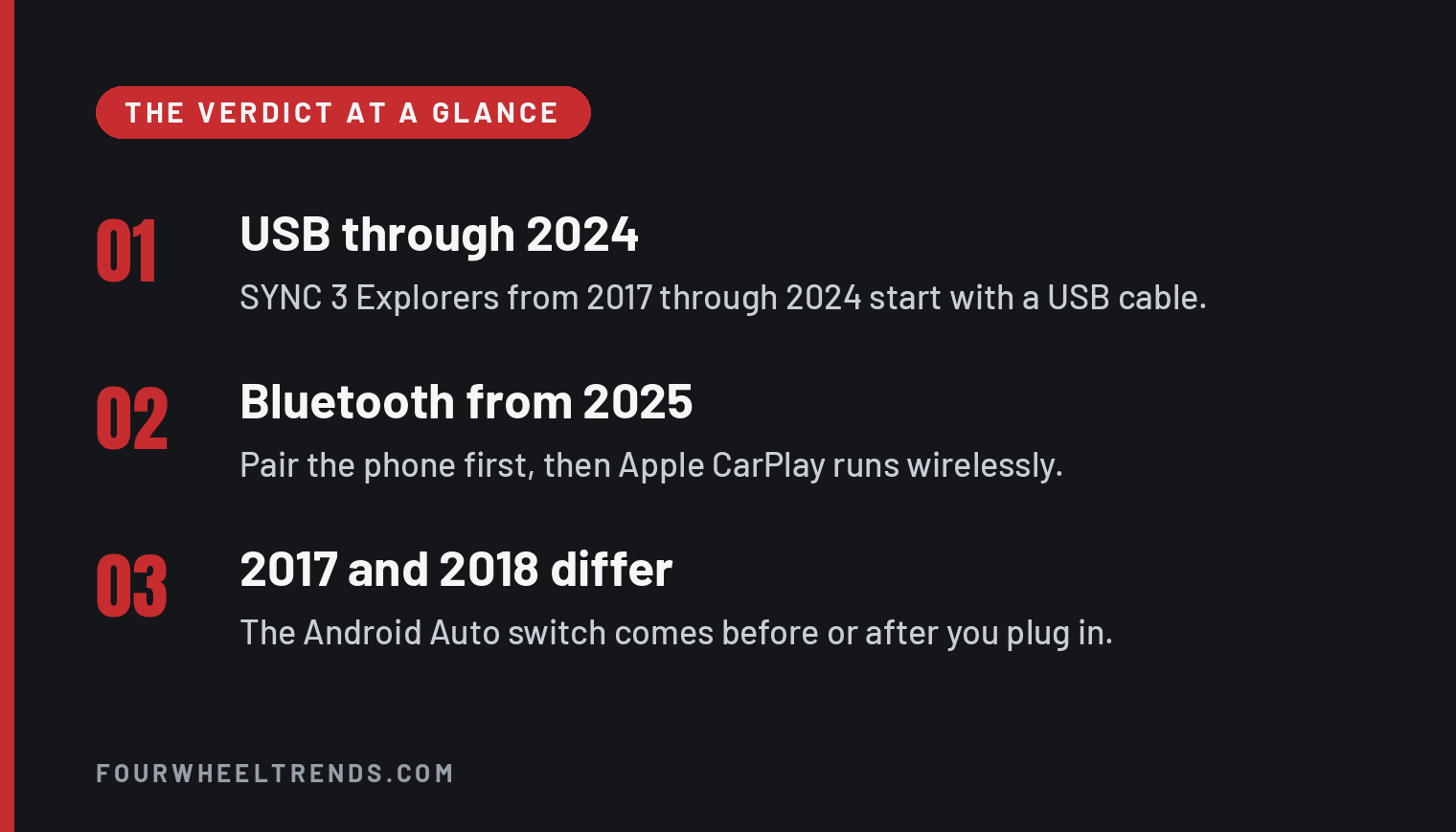
CarPlay and Android Auto arrive with the 2017 SYNC 3 screen
Ford’s 2016 Explorer owner’s manual has no Apple CarPlay or Android Auto section. Both first appear in the 2017 manual, under SYNC 3 Smartphone Connectivity.
Ford lists the feature as equipment that not every Explorer has. The 2017 through 2019 manuals mark Smartphone Connectivity “(If Equipped)”, and the 2021 through 2024 manuals put the same mark on Apple CarPlay and on Android Auto. The steps below apply to an Explorer that has the feature installed.
The phone matters too. The 2017 through 2019 manuals call for an iPhone 5 or newer with iOS 7.1 or newer, and they say Android Auto works with most devices running Android 5.0 or newer. The 2025 and 2026 manuals list wireless Apple CarPlay for an iPhone 6s or later.
Shopping for a used Explorer by model year? The site’s guide to the best Explorer years compares them.
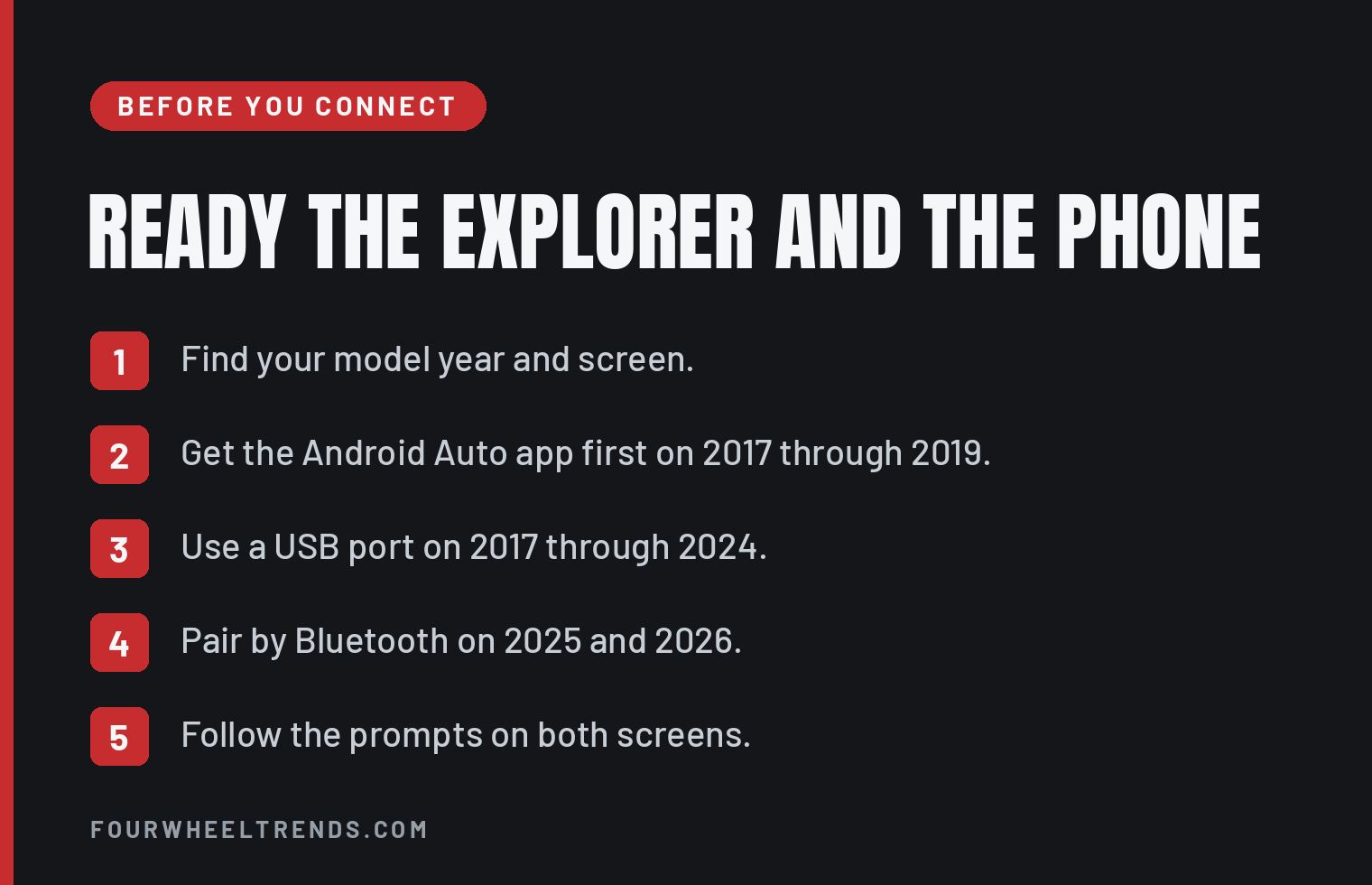
Plug in by USB on a 2017 through 2024 Explorer
Every SYNC 3 manual from 2017 through 2024 starts Apple CarPlay with a cable in a USB port.
- Connect the iPhone to a USB port.
- Follow the instructions on the touchscreen.
- Follow the prompts on the iPhone to allow access to Apple CarPlay.
The third step comes from the 2017 through 2019 manuals. Those manuals also say the phone connects to CarPlay automatically each time you plug it in after the first setup.
Android Auto on a 2019 through 2024 Explorer uses the same cable and the same touchscreen prompts. The 2019 manual has you download the Android Auto app from Google Play first. The 2020 through 2024 manuals add that you might need to enable Android Auto from the settings menu.
Turn on Android Auto before plugging in a 2017 Explorer
- Download the Android Auto app from Google Play.
- On the SYNC 3 Settings screen, scroll left and select Android Auto Preferences.
- Select Enable Android Auto.
- Plug the phone into a USB port.
The 2017 manual says Android Auto must be switched on before you plug in the device.
Plug in a 2018 Explorer before turning on Android Auto
- Download the Android Auto app from Google Play.
- Plug the phone into a USB port.
- On the SYNC 3 Settings screen, scroll left and select Android Auto Preferences.
- Select Enable Android Auto.
The 2018 manual says Android Auto must be switched on after you plug in the device. That is the reverse of the 2017 order.
Pair by Bluetooth on a 2025 or 2026 Explorer
The 2025 and 2026 manuals start wireless Apple CarPlay and wireless Android Auto the same way, by pairing the phone to Bluetooth.
- From the settings menu on the touchscreen, press Bluetooth.
- Press Add device.
- Select your vehicle on the phone.
- Confirm the number on the phone matches the number on the touchscreen.
- Approve the phonebook download request on the phone.
- Follow the instructions on the phone and the touchscreen to start Apple CarPlay or Android Auto.
For Android Auto by USB on an equipped 2025 or 2026 Explorer, connect the phone to a USB port and follow the instructions on the phone and the touchscreen. Neither manual lists a USB route for Apple CarPlay.
The 2026 manual says a compatible Android phone and an active data plan are required for Android Auto. Both manuals say wireless Android Auto is not supported on certain Android devices.
Where to switch CarPlay or Android Auto back on
Each Explorer system keeps the on and off switch for Apple CarPlay and Android Auto in a different place.
On a 2017 through 2019 Explorer, each phone is listed under Apple CarPlay Preferences or Android Auto Preferences on the Settings screen. The manuals note you may need to slide the Settings screen to the left to see them.
On a 2020 through 2024 Explorer, select the settings option on the feature bar, then Apple CarPlay Preferences or Android Auto, and use the switch there.
On a 2025 or 2026 Explorer, go to the settings menu, press Bluetooth, find your device in the list and press the Apple CarPlay or Android Auto button. The manuals use the same button to turn the feature off.
Both later manuals also say the phone receives some vehicle data, such as speed and location, while Android Auto or Apple CarPlay runs. For the engines Ford offered over these years, see the site’s Explorer engine guide.
Sources
- 2016 Explorer owner’s manual (no Apple CarPlay or Android Auto section).
- 2017 Explorer owner’s manual, SYNC 3 Smartphone Connectivity, pages 445 and 446.
- 2018 Explorer owner’s manual, SYNC 3 Smartphone Connectivity, pages 455 and 456.
- 2019 Explorer owner’s manual, SYNC 3 Smartphone Connectivity, pages 451 and 452.
- 2020 Explorer owner’s manual, SYNC 3, page 446.
- 2021 Explorer owner’s manual, SYNC 3, page 455.
- 2022 Explorer owner’s manual, SYNC 3, page 449.
- 2023 Explorer owner’s manual, SYNC 3, page 449.
- 2024 Explorer owner’s manual, SYNC 3, page 452.
- 2025 Explorer owner’s manual, Phone, pages 462, 465 and 466.
- 2026 Explorer owner’s manual, Phone, pages 472, 475 and 476.